Showing posts with label Automation. Show all posts

Tuesday, October 30, 2018

Exposing Blue Prism Process as API - SOAP Architecture in BluePrism

Objective: Let's perform calculation (sum of two numbers) by calling API exposed from Blue Prism Sever.

We should bifurcate this work in smaller tasks so that implementation could be visible possible. Here are smaller tasks:


  • Create an object performing Summation of two numbers
    • Object must be accepting two numbers as two inputs in start
    • Object must return result as summation
  • Create a Process calling above created object 
    • Process must be accepting two numbers as two inputs in start
    • Process must return result as summation
    • Publish this process
  • Expose Process as an API
Bingo! looks this must fulfill the process.


Task 1:

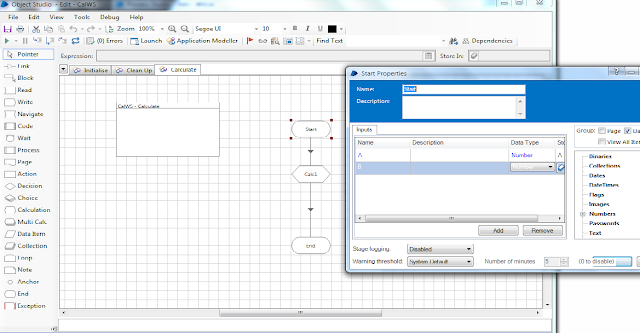
This is an object accepting two numbers and stage "Calc1" is performing summation of those two numbers and returning this in END stage.


Task 2:

Let's create a process which accepts two numbers as input so that any one calls it can pass two numbers to calculate.

Addition Stage is calling object we created above by passing both numbers we would get from THE API call.

Note: Ignore Email stage as I wrote to check if summation has happened when ever API is called.
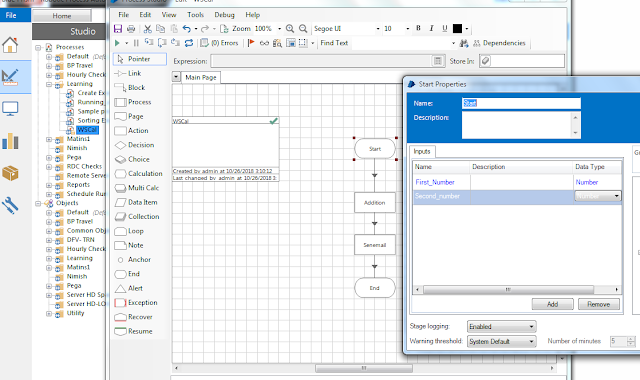


We must pass result as an output so that whoever is calling this API must get an expected result of summation. Don't forget to publish this process!


Task 3:

Go to System Manager and go to Exposure underneath Processes. You must expose process as I have exposed WSCal process which will perform summation as explained in Task 2.


Finally we need to check if exposed API works or not. You can check XML by clicking https://localhost:8181/ws this will list all Objects and Processes exposed from BP server. Make sure you have port entry in hosts file. 
Now target is to very our API.
I have installed  SoapUI application to test API exposed. I am skipping this whole process of installing and configuring API however let's jump on to result. I have passed two values 56, 34 as displayed in following image and gives result at right hand side as 90. 

Note: You must pass Blue Prism credentials to access API. 


Feel free to ask questions.

Wednesday, August 29, 2018

Configure and call Third Party Web Service (Web API) in Blue Prism

Blue Prism has endless capabilities when it comes to automate business processes securely keeping scaling in the context all the time. If some caught with a scenario where a service or process needs to be call using Web API without accessing GUI which normally exists. For example medical companies has to validate any information they label on medicine and get approval from medicine department. Likewise insurance may have API exposed to, possibly, create policy or claim.


Let's explore how we can configure a Web Service within Blue Prism and call appropriate method to automate business process. I am taking an example of performing calculator basic functions using Web WSDL API. Following are the steps:


  1. Go to System Tab -> Web Services (Inside Objects in navigation) -> Click on "Add Service" link. It will open a popup to configure API
  2. Blue Prism asks to supply Web Service URL (Make sure API is WSDL only, Blue Prism doesn't support REST APIs) then click on next button to supply credentials

Thursday, July 19, 2018

Sending Email using Blue Prism

Here is a quick snippet of configurations for sending a test email using Yahoo configurations. Same configuration will work for GMAIL (Possibly, port for SMTP might change)


  1.  Import Email - POP3/SMTP VBO
  2. Drag an Action and Select Business Object as Email - POP3/SMTP (As displayed in following screenshot)
  3. Select Action Configure and fill values as displayed:
  4. Drag another action in flow and select Business Object as Email - POP3/SMTP (As displayed in following screenshot)
  5. Select Action Send Message and fill values as displayed

Friday, July 6, 2018

RPA Certification questions - Automation Anywhere

Few questions may be standard to ask in an interview or may not be. Those questions are thought and drafted with minimal explanation to face an interview. You might find few questions from AA certification as well. 


What is a Default mode of Credential Manager?

Ans. Default mode of credential manager is express mode. There are two modes Express and Manual. Both modes are for Credential Vault.


What is Credential Vault? 

Ans. Credential vault stores credentials which are encrypted using a master key.
Express mode: saves the master key and it automatically connects to the credential vault every time web CR restarts.
Manual mode: asks to enter keys every time CR restarts so that you gets connected to credential vault.
AA does NOT recommend express mode instead it says to use manual mode. It recommends you to copy the AA generated master key on Windows clipboard and save it in a secure location.
Credential vault is recommended to be used in production environment


Can we connect to We Control Room (CR) using same credentials from two separate machines on same time?

Ans. You can log on web CR using same credentials from two different machines or from two different browser on same machines but as soon  as second login takes some action first session logs off automatically.


When does session expires on Web CR?

Ans. A web CR allots a 20 minutes session window to a client and it keeps on getting refreshed for same period. It auto logs in and service runs in the background to do it. Session will expire in between if same credentials is used to login from different machine or browser.


Can I install Control Room on Windows 7?

Ans. Web CR does not operate on windows 10/7. I works on Windows server 2016 or Windows server 2012 r2. Any client has to be authenticated by Control Room.


How many recorders AA has?
Ans. There are 3 recorders in AA. Object recorder is recommended for Windows based applications. Web recorder is used for web based applications. And smart recorder can capture both windows and web applications


What are supperted browsers in AA?

Ans. Supported Browser versions
IE 10 AND 11
CHROME 49 and above
FIREFOX 45,46,47
chrome is not supported in meta bot designer.


Which SVN is used in AA for repository?

Ans. AA supports Apache subversion (SVN) . Neither visual nor tortoise.


How many users can connect to one AA Client License?
Ans. When we create client user on CR, it asks the role of the user so you can assign three role as Developer, Run-time or None.
Developer is to create bots.
Run-time is normally used by support/operations team to measure performance etc. It's read only mode.
None is nothing. When selected to any machine it would be unusable however could be in use by changing in dropdown.

Thursday, September 23, 2010

How to get text from FlexElement using RiaTest

Find below the solution to get text from any element from Flex window:

Suppose you have an element to get text from. First find it’s parent element and locate your targeted element by any element property (id, class, location ).
e.g.

var confirmationText = FlexCanvas("Home Page")->new Locator({id:"messages"})=>text;

to check value returned:
trace(confirmationText)


Cheers!

Wednesday, September 15, 2010

Automatic mail generation with attachment irrespective of development language

Hi

I came across a very old and very interesting tool called 'BLAT' which facilitate to send an email with attachment. Using BLAT you need not to worry about the development language.
BLAT provides blat.lib, blat.exe and blat.dll so we can use whatever we want.

I use EXE file and can use this either from ANT or command line. following is an example to use it via ANT:


cheers!
Vaibhav

Friday, August 27, 2010

Marathon Setup

I Got an opportunity to explore Marathon tool for automated testing. I found Marathon is good tool to automate Java application (Only Jar files) with little dependency :)

Marathon works like IDE so we only need to install is Java to run our application. So just download Marathon setup from http://www.MarathonTesting.com and unzip it to your willing location. Once you run marathon.bat file it will allow you to create new project. Fill up the required field with your Jar file path and start automating your application. Marathon allows you to use either Ruby or Python to script.


What I told so far is described on Marathon official site so what this blog post is about? Ok then check below the real time scenario.

Now I found a problem to setup individual machine for number of Automation resources and let them work at the same time on same codebase. Solution of this problem is to break down marathon setup so that I can set it up on server and check into the subversion. By doing this we can checkout code from Repository and start writing automation script.


So I create new directory structure as per my need. Find below very basic structure to make Marathon work:

- Marathon
1. build – build files
2. lib – copy Jar and jython from extracted Marathon source
• vldocking_2.1.5C.jar
• rmi-lite.jar
• sampleapp.jar
• marathon-runtime.jar
• marathon-ruby.jar
• marathon-python.jar
• marathon.jar
• looks-2.2.0.jar
• junit.jar
• jline-0.9.93.jar
• jedit-textArea.jar
• jaccess-examples.jar
• jaccess.jar
• forms-1.2.1.jar
• copy Jython directory version is 2.2 in my case
3. TestCases – regression test scripts
4. RegressionReport – regression report location (You can pass this location as an argument.)
5. Copy Marathon.bat

Double click on Marathon.bat to run Marathon ide. You will get an expected error because we have changed Jar’s location. Let’s change configuration of marathon.
Open Marathon.bat into notepad and change the “CLASSPATH” as per expected location.

%DIST% - is the location where you Marathon file resides.

So change all Jar file location to the right path (lib/). Now Marathon.bat


Cheers!
Vaibhav

Friday, February 5, 2010

Dealing with SSL certificates while running selenium tests with Firefox-3.x

Selenium works without any problem if application does not use HTTPS; but as soon as application goes to the HTTPS URI on the same host everything goes unexpected. As Selenium effectively runs Firefox with a new profile every time, you potentially lose every certificate exceptions you might accept.

One technique is to create a custom profile; run Firefox using that profile; browse to the HTTPS URL and accept the exception into that profile; then close the profile. So accepted expectation would not be asked to accept again if we use same profile.

Following are steps to setup profile and some more hack to make accepted certificate available:

1. Start Firefox with the profile manager: firefox -ProfileManager
2. Create a new profile. You'll be prompted to choose a directory for the profile.
3. Select the profile and run Firefox using it.
4. Browse to the HTTPS URL (with self-signed certificate) you're going to be testing against.
5. Accept the self-signed certificate when prompted. This creates an exception for it in the profile and Close the browser.
6. Go to the Firefox profile directory and delete everything in the directory except for the cert_override.txt and cert8.db files.
7. When you run your Selenium server, pass a -firefoxProfileTemplate /path/to/profile/dir argument to it. This tells Selenium to use your partial profile with certificate exceptions.


In this way selenium would not ask you to accept any certificate once you accept against this profile. Do not forget to use same profile while run selenium. Have a look at beautiful code calling your profile:


The Ant task above, with this option, looks like this:


Outside of Ant, the command might look something like:

java -jar path_to/selenium-server.jar -firefoxProfileTemplate /path/to/profile \
-htmlSuite '*chrome firefox-bin' http://host.com testSuite.html seleniumResults.html


Cheers!!!

Friday, August 28, 2009

Use of getoptlong in Ruby

this post is to describe how to use getoptlong package in ruby. Once i need to use it while i have given a task to generate a csv file in a specified format and need to upload that file into my automated testing tool "TESTDROID". there are some snippet of code that may help you to write code for your own.

you need to require some gem:

the format of getoptlong comments for the help and the text for special help is as follows:


then i need to handle the usage according to my requirements. as you can see that requirement in the last snnipet. so i had to decide which usage option i need to call according to the help option. so i have written a method for this requirement just look at this:

now the question is to call or use wrtten code. so just look at this:


hope this may help you to implement this.
Cheers!!

Monday, August 3, 2009

Effective use of xpath in automation (Recursive Descent Xpath)

using xpath in the automation can let you down any time. so there is a big question what do we do when there is no option left except using xpath. so we have recursive descent xpath.it actually search for particular context element.
for example:


following is the description of recursive descent xpath from Microsoft:

An expression that uses the double forward slash (//) indicates a search that can include zero or more levels of hierarchy. When this operator appears at the beginning of the pattern, the context is relative to the root of the document.For example,
the following expression refers to all elements anywhere within the current document:


Tuesday, March 17, 2009

"is_element_present" does not return FALSE !!!

While writing automation script in selenium using ruby I had a need to assert and check element on the page. I have created an API for element present and check assertion to mention in the report and log. So I got “is_element_present” method which returns TRUE if it finds element on the page otherwise FALSE.

But actually it doesn’t return FALSE. In fact throws an error and just demolish all the script and go out from code. You can handle this situation and even can write this to your report and log as well.

Have a look:

def is_element_present(id)
begin
$browser.is_element_present(id)
rescue SeleniumCommandError
return FALSE
end
end


this actually handling the exception and that case when element doesn’t present on the page you can explicitly return FALSE. By this, “is_element_present” works expectedly.

Thursday, December 18, 2008

how to automate sproutcore appliaction through watir

Automation of a sproutcore application is still a headache for programmers. We can automate sproutecore application through selenium and watir as well.

I have successfully created a sample script which runs from both selenium and watir as well.
Actually, I have managed some api which run according to the environment like watir or selenium.

The question how you automate a sproutcore application while there is no such HTML tag on the page. Complete application runs through JavaScript. We can not click on any event directly from id. So, how can we deal with this problem?
So guys cheer up in the sproutcore everything is a link. So I have classified the event into three parts:

1. text field
2. button
3. Check box or radio button.

For the first case we deal it normally as we did normally with watir

$browser.text_field(:id,”id”).set(“hello sproutcore”)

The second and third case is different as we can not click on the button or any event directly.

We need to find out the controller and corresponding method associated to the event. We need to execute JavaScript. Well guys, there is a hell lot of difference to click on button or check box. Have a look at the controller.

There is a direct method associated to the button. Check out the view page this is an action while radio button and check box bind the value. Now go to the controller you will see that the corresponding method is actually bind from the variable. That means it always observes the value of the variable and performs action accordingly.

Ok. I am giving you an example how to automate it from watir.

I have create a sample application which have a button with the id=”toggle_button”.
I just find out the source code and go to the index of “toggle_button”. The reason being I need the controller and method information as you can see the following source code:


toggleButton: SC.ButtonView.extend({
action: "SproutHello.appController.toggleGreeting"
}).outletFor("#toggle_button") ,


So now I have all information. I just need to create a JavaScript and just execute it.

body_array = page_source()
action_str = body_array[body_array.index("}).outletFor(\"##{button_id}\")")-1]
action = action_str.split("\"")[1]
ff.js_eval("var w_all = getWindows(); var w_one = w_all[#{window_count}]; w_one.content.#{action}();")


So, guys start playing with clicking on button. :)

We can not click on check_box with the above code the difference is in the javascript because check box and radio button the working as toggle. If it is on then you need to turn it off and vice versa. So you need to get the value and set the value.

body_array = page_source()
action_str = body_array[body_array.index("}).outletFor(\"##{event_id}\")")-3]
action = action_str.split("\"")[1]
_obj = action.split(".")
_get = "w_one.content" + "." + _obj[0].to_s + "." + _obj[1].to_s + ".get(\"" + _obj[2] + "\")"
_set = "w_one.content" + "." + _obj[0].to_s + "." + _obj[1].to_s + ".set(\"" + _obj[2] +"\",!" + _get.to_s + ")"
ff.js_eval("var w_all = getWindows(); var w_one = w_all[#{window_count}]; #{_set}")


Don’t get confused with window count this is to check how much firefox windows are open and on which script should work upon.

Enjoy sproutcore automation
:)
gud luck.